Pioneer DJ · LEGACY USB AUDIO
Run your lights
from the DJM-900SRT.
Connect your DJM-900SRT to a Mac running Very Lit. Its USB audio feed gives the lighting system music directly from your DJ setup, without a room microphone picking up the audience.
Browser demo · no account or lighting hardware needed.
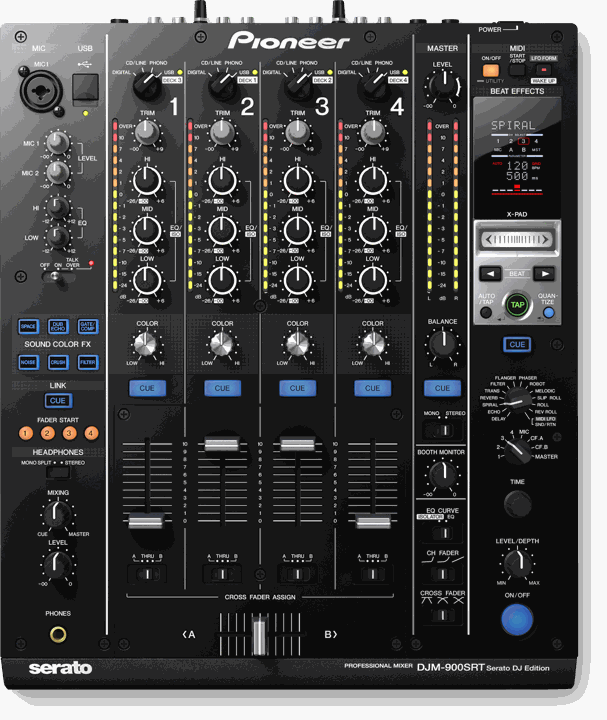
From your mix to the dance floor.
- DJM-900SRTProgram mixUSB audio →
- Mac + Very LitListen • animate • sendEthernet / Art-Net →
- Art-Net → DMX nodeYour lighting bridgeDMX cable →
- DMX fixturesLight follows the music
The setup you need.
Create your free account, build your lighting show, then download the Mac app to connect your rig.
- Your DJM-900SRT and a USB data cable for its Computer USB Type-B.
- A Mac running macOS 14 or later with the Very Lit app, your account and a saved lighting show.
- The manufacturer’s Mac audio driver or Setting Utility where required, compatible with your macOS version.
- An Art-Net-to-DMX node, a wired network connection from the Mac, and DMX cables to your fixtures. An Ethernet adapter may be needed on the Mac.
The SRT has its own driver and routing utility. A driver intended for the 900NXS or 900NXS2 is not a substitute.
Check this before the gig: this is a legacy device. Its documented USB route is usable only if your current Mac exposes the audio input. Confirm manufacturer driver and OS compatibility before installing software or relying on this route.
STEP 1 · MUSIC IN
Connect the computer audio port.
Connect the Computer USB Type-B to the Mac with a USB data cable. Keep the normal master/booth speaker wiring in place. Very Lit listens to a copy of the audio; your PA does not need to play through the laptop.
Open macOS Audio MIDI Setup and confirm DJM-900SRT appears with audio input channels. A playback-only output, storage device or MIDI connection is not enough. If the audio input is missing, check the model’s software, firmware, USB port and cable.
STEP 2 · ROUTE THE MIX
Send the program mix to the Mac.
Use DJM-900SRT Setting Utility → MIXER OUTPUT to send MIX(REC OUT). Keep any Serato DVS routing requirements in view while checking what every input pair sends.
The current bridge combines all input channels exposed by this device and has no stereo-pair picker for it. A recording mix on one pair does not silence the other pairs. Check them for pre-fader music, DVS tones, cue audio and microphone signals; use silent or appropriate mix routes where the manufacturer allows it.
If those other channels are needed by your DJ software and cannot be kept clean, send an available line-level program output to a separate stereo USB audio interface. Select that interface in Very Lit to isolate the lighting feed.
DJM-900SRT manufacturer connection reference ↗STEP 3 · LISTEN IN VERY LIT
Select the USB input.
Open Audio input in the Very Lit Mac app and select DJM-900SRT. Allow macOS microphone permission if requested; it also covers external audio capture. Choose your saved show and watch the audio response while the music plays.
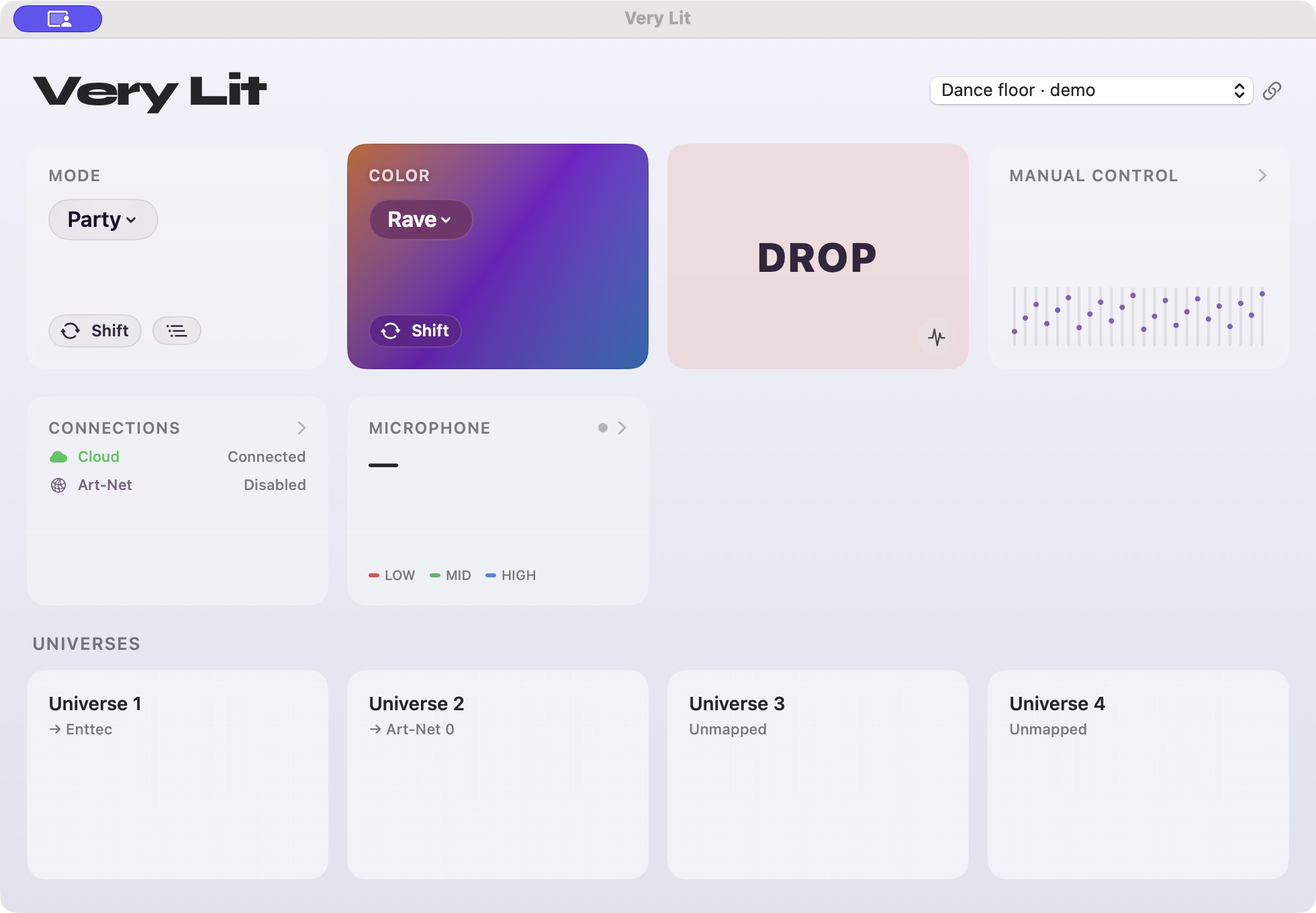
After a USB disconnect, check the selected input again. A microphone fallback can receive crowd sound instead of the direct mix.
STEP 4 · LIGHTING OUT
Connect the Art-Net node and fixtures.
Connect the Mac and Art-Net-to-DMX node to the same reachable wired network. In Very Lit’s Connections panel, enable Art-Net and set the destination host to the node’s address. Allow macOS Local Network access when requested.
Map your show universe to the Art-Net universe configured on the node’s DMX port. Run DMX OUT from that node to the first light’s DMX IN, then continue the fixture chain. Match each fixture’s model, channel mode and start address to the show’s patch.
Follow the illustrated Art-Net setup →Test one light with Manual Control first. Then release manual overrides, check Blackout is off and run the music-reactive show.
STEP 5 · PROVE THE FEED
Test what the lights actually hear.
- Play a track through the mixer. Check the Mac audio response and a physical light.
- Cue a second track with its channel fader down. If the audio analysis changes, an unwanted pre-fader or cue route is being captured.
- Stop the music, then speak or clap beside the Mac. The USB input should not respond to that room sound.
- If you use a mixer microphone, test it separately. USB avoids the laptop microphone; it does not remove speech already routed into the USB feed.
- Reconnect the cable and repeat the input and one-light checks before opening the doors.
Useful answers before your set.
Does DJM-900SRT send DMX directly?
The device supplies audio. Very Lit analyzes it on the Mac and sends lighting commands through the Art-Net node. The mixer’s USB cable is not a DMX connection.
Do I need PRO DJ LINK or rekordbox lighting?
This route uses audio analysis, not MIDI or PRO DJ LINK beat-grid data. Your DJ setup can keep using its normal playback software or standalone sources, subject to the model’s USB routing described above.
Can I build the show before I connect this device?
Yes. Use the browser show editor to place your fixtures, group lights and preview the room in 3D. The Mac app receives the live audio and connects that show to real lighting hardware.
Spend your set on the music.
Design the room in 3D, pick the lighting look and let Very Lit animate your fixtures from the mix. Your DJM-900SRT remains the center of your DJ setup.
Create your free show →See plans · Keep exploring the demo · Browse all USB devices
Install the Mac app
Requires macOS 14 or later.
- InstallUnzip the download and drag Very Lit into Applications.
- Sign inOpen Very Lit and choose Link to Cloud.
- Allow accessApprove Microphone and Local Network when asked.
DJM-900SRT references.
Manufacturer product information & software support ↗
Manufacturer manual / setup documentation ↗
Documentation reviewed October 12, 2026. This is a manufacturer-documented audio route compatible with Very Lit’s Mac input architecture; it is not a claim of a physical Very Lit bench test on every model. Product photo: Pioneer DJ. Independent guide; no affiliation or endorsement implied.