FIXTURE SETUP
Patch a Chauvet fixture or GigBAR kit.
Search by the full model name. For a GigBAR, decide whether you are adding the complete kit or a component profile before assigning channels.
Check your model in the library →Before you start
- Full model name and DMX mode from the fixture label and menu.
- For a GigBAR: the address of the complete unit and the channel footprint of the selected kit profile.
One physical kit, one reserved channel block
Next fixture: 24
Next fixture: 133
Models and modes in the library
Selected examples below. Search your full model name to see all matching entries. Use the same mode on the fixture and in Add Light.
| Fixture profile | DMX modes |
|---|---|
| Chauvet DJ GigBAR 2 | 3-channel · 11-channel · 23-channel |
| Chauvet GigBAR 3 ILSDedicated Very Lit profile | 132-channel |
| Chauvet DJ SlimPAR Pro H USB | 6-channel · 7-channel · 12-channel |
| Chauvet DJ Intimidator Spot 160 | 5-channel · 11-channel |
| Chauvet Rogue R2 BeamDedicated Very Lit profile | 18-channel |
| Chauvet DJ COLORband PiX | 3-channel · 4-channel · 6-channel · 7-channel · 9-channel · 12-channel · 18-channel · 36-channel |
STEP 1
Find the exact model, including its suffix
Search the library for your model and check the available modes. ILS, USB, IP and other suffixes can identify different hardware. A result for Intimidator Spot 160 does not establish support for a 160 ILS.
For individual lights, follow the moving-head, par or bar guide linked below. For a complete GigBAR, search the kit name rather than choosing Par, Derby, Laser or Strip components.
STEP 2
Patch a complete GigBAR once
For GigBAR 2, the Chauvet DJ library entry offers 3-, 11- and 23-channel modes; the dedicated Very Lit kit profile uses 23 channels. Match whichever entry you select to the hardware’s mode.
The dedicated GigBAR 3 ILS kit profile uses 132 channels. At Address 1 it reserves 1–132, so the next fixture begins at 133. Do not also add its Par, Derby or Strip components over that same block unless you are deliberately building a custom component patch.
ILS branding describes capabilities of the fixture. This setup uses DMX output from the bridge; it does not configure an ILS wireless controller.
STEP 3
Review the patch and connect the output
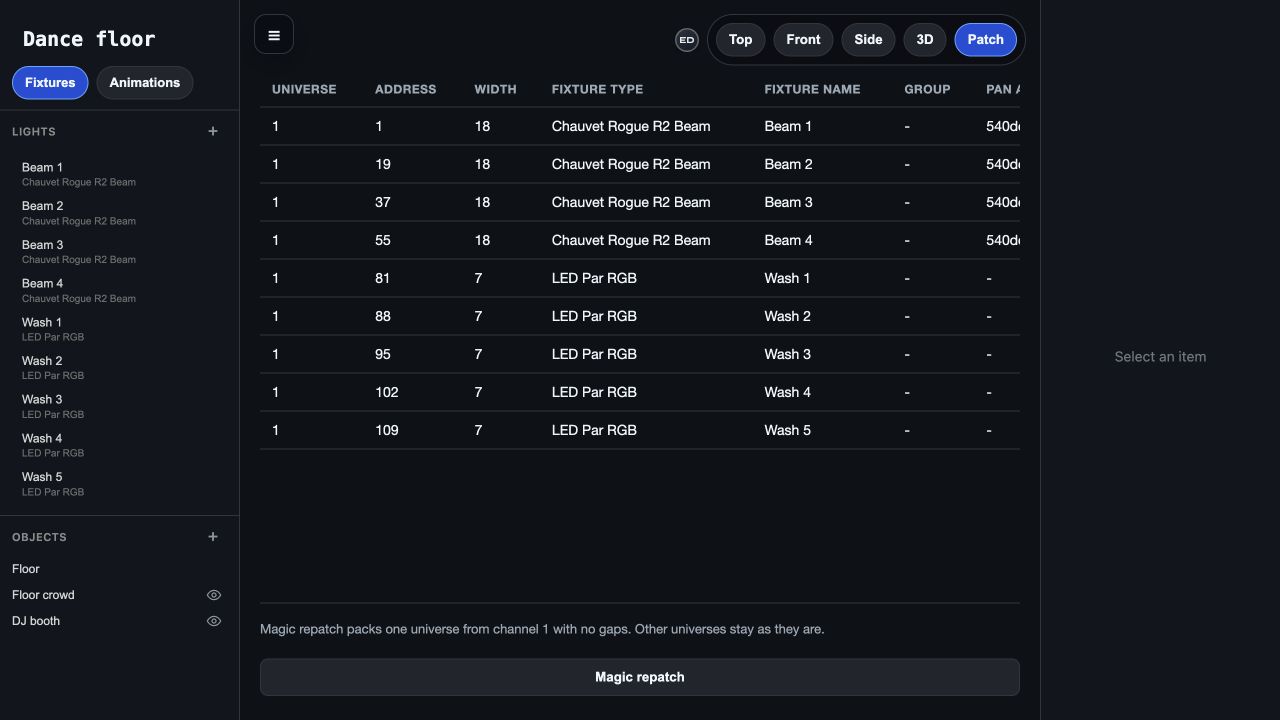
Use Patch view to confirm Universe, Address and Width. Set the same address and mode on the physical unit. After changing a kit’s mode, recheck the following fixtures’ ranges.
Choose the hardware guide for your rig: ENTTEC DMX USB Pro for one USB output, or Art-Net for a network node. Test one kit before extending the chain.
Troubleshooting
Only some GigBAR effects respond correctly
Compare the kit’s channel mode with the selected complete-kit profile. Check whether you accidentally selected an individual component. Do not fill the remaining effects by adding overlapping profiles; correct the kit patch first.
I find my brand but not my model
Try the full model and a shorter distinctive part of its name in the library search. A related model is not automatically compatible. If there is no exact profile, keep the fixture unpatched until you have a definition matching its DMX channel map. Record the model name, manual link and desired mode when asking for a new profile.