FIXTURE SETUP
Patch and aim a moving head.
Start with one mover. Match its mode and address first, then make the editor’s position and housing orientation match the real mount.
Check your model in the library →Before you start
- Exact model and channel mode from the light’s menu or manual.
- Start address, output universe and mounting position for each mover.
Mounting and movement are two different settings
Fixed mounting orientation.
Set it in the show editor.
Live movement of the head.
Check range and fixture settings.
Models and modes in the library
Selected examples below. Search your full model name to see all matching entries. Use the same mode on the fixture and in Add Light.
| Fixture profile | DMX modes |
|---|---|
| Chauvet Rogue R2 BeamDedicated Very Lit profile | 18-channel |
| Chauvet Rogue RH1 HybridDedicated Very Lit profile | 20-channel · 25-channel |
| Chauvet DJ Intimidator Spot 110 | 6-channel · 12-channel |
| Chauvet DJ Intimidator Spot 160 | 5-channel · 11-channel |
STEP 1
Choose the model and DMX mode
Search the library for the exact model, then choose that profile in Add Light. Match its mode to the menu on the fixture. Rogue RH1 Hybrid, for example, has separate 20- and 25-channel profiles; those modes reserve different amounts of space.
Choose the universe and Address, then place the fixture in the room. Add another mover only after the first behaves correctly.
STEP 2
Reserve the whole channel range
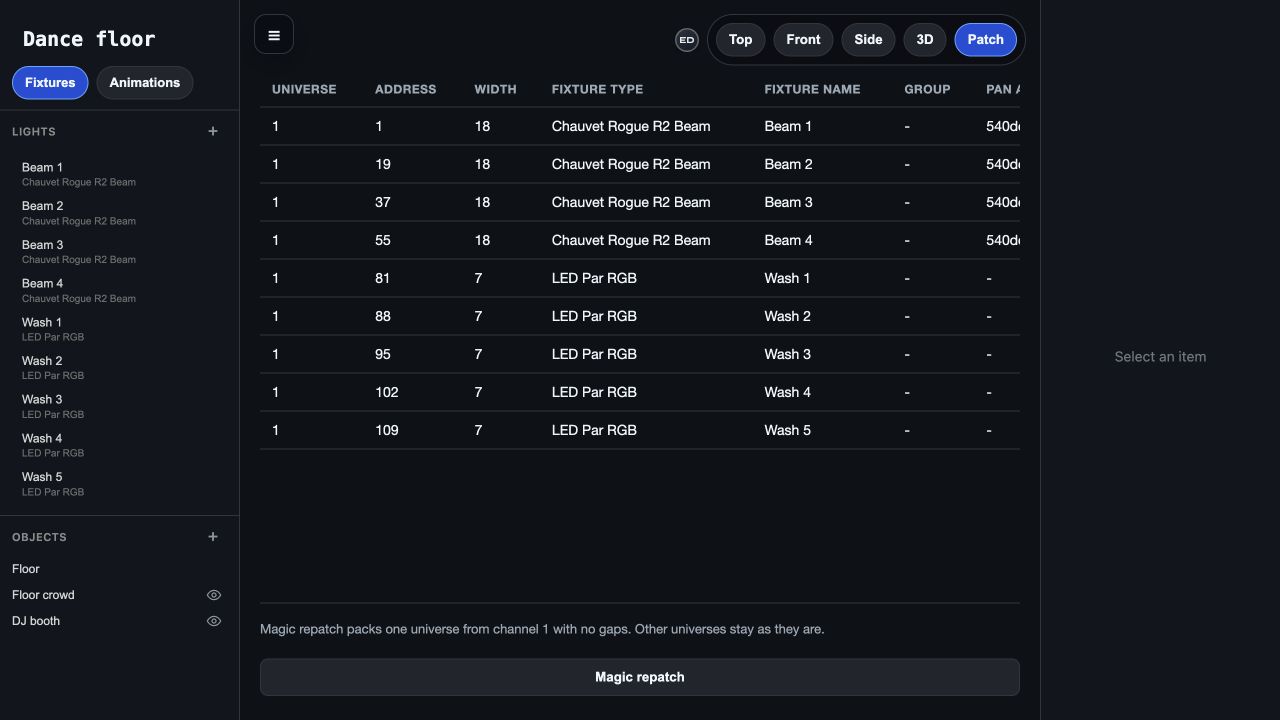
A Rogue R2 Beam in the library’s 18-channel mode at Address 1 occupies channels 1–18. The next one can start at 19 and occupies 19–36. A third can start at 37.
In Patch view, compare Universe, Address and Width with the hardware. A fixture must end at or before channel 512. After changing a mode, recheck all following addresses.
Three 18-channel movers
STEP 3
Match the physical mount, then check motion
Select the fixture in the editor. Set its position, height and housing rotation to match where and how it is mounted. A fixture hanging from a truss and one sitting upright need different housing orientations.
Connect the bridge and observe that fixture through a small group of looks. If the hardware offers pan/tilt inversion, record its setting and compare the movement with the preview. Confirm the useful movement range before duplicating the fixture.
Troubleshooting
The mover pans when I expect color or dimming
First check the exact model, DMX mode and start address. A channel-order mismatch can send a color value to a movement channel. Fix the patch before adjusting the 3D mount.
The real head moves in the opposite direction
Compare the fixture’s pan/tilt inversion settings, mounting orientation and the editor’s housing rotation. Check that you selected the correct profile. Changing its start address will not correct a physical orientation mismatch.
The head moves but its beam stays dark
Check Blackout and the fixture’s dimmer/shutter behavior in the selected mode. Confirm the physical fixture is in DMX control rather than an onboard program, and consult its manual for lamp or shutter requirements.