ART-NET SETUP
Send your show to an Art-Net node.
Use this guide when your fixtures connect to a network DMX node. You will set the destination host, route a show universe, and check one fixture before adding the rest.
Test one light without audio →Before you start
- The Very Lit Mac bridge linked to your account, with your show selected.
- An Art-Net-to-DMX node, its IP address, and the Art-Net universe assigned to its DMX output.
- Mac and node connected to a reachable local network; DMX cable from the node to the fixtures.
The signal path
STEP 1
Connect the node and enable output
Connect the Mac and node to the same reachable local network. Cable the node’s DMX OUT to your first fixture’s DMX IN. Put that fixture into DMX control, rather than an onboard sound or auto program.
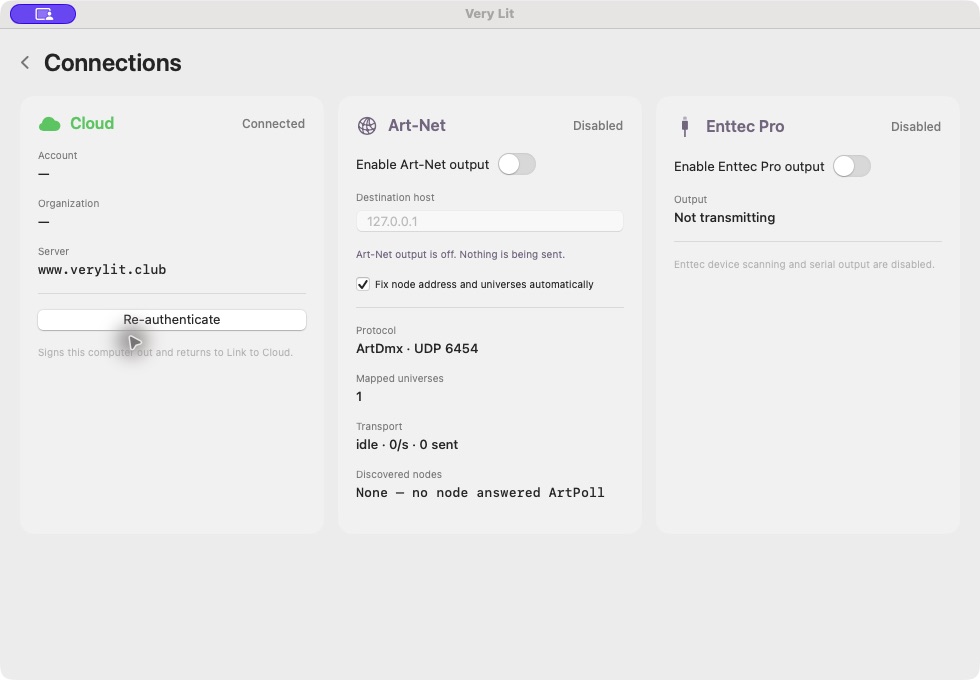
In the bridge, open Connections and turn on Enable Art-Net output. In Destination host, enter the node’s IP address. Allow macOS Local Network access if prompted. Read Discovered nodes and Transport to check the connection.
STEP 2
Route a show universe to the node’s universe
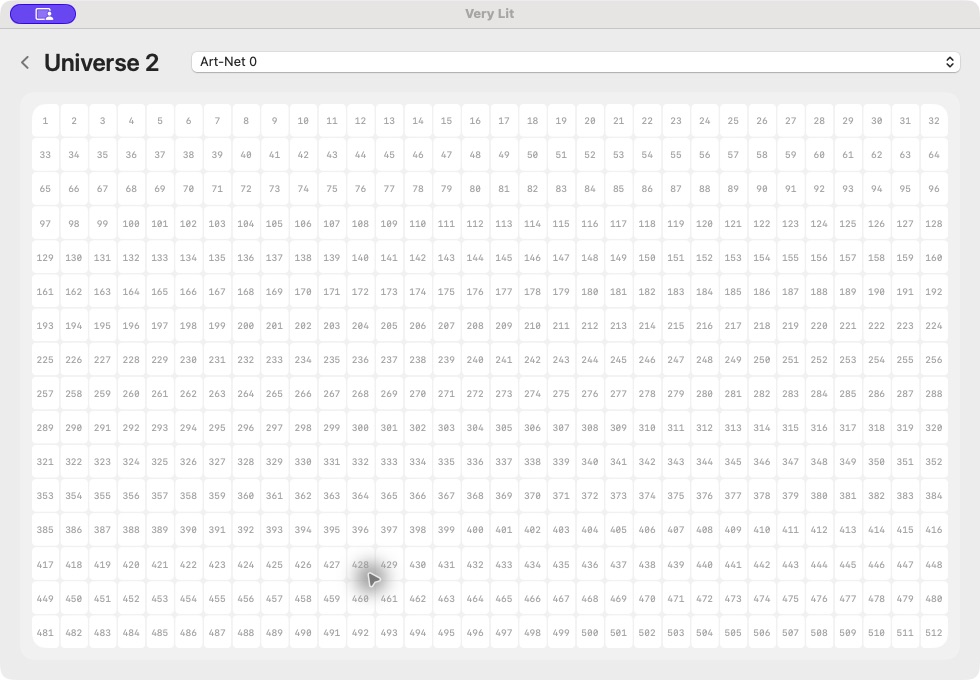
Open the universe tile that contains your fixture. Set Destination to the Art-Net number assigned to the node’s output. The bridge’s picker currently offers Art-Net 0–15.
Example: a light patched on virtual Universe 2, Address 1 can be sent to Art-Net 0. Set the bridge’s Universe 2 destination to Art-Net 0 and configure the node’s output to that same Art-Net number. Keep the physical fixture at address 1.
Node menus may count from 0 or 1. Check the node manual’s numbering convention. In Connections, “Fix node address and universes automatically” can update routes; review the displayed destination and Last correction after a change.
STEP 3
Check output on one fixture
With the correct show selected and Blackout off, play music into the selected audio input. Confirm the bridge receives audio and that the fixture responds. Check its channel mode and address against the editor’s Patch view.
Once one fixture works, add the rest of the DMX chain and check each address. Leave show universes you are not using set to Unmapped.
Troubleshooting
No node appears in Connections
Confirm the node is powered and the Mac can reach its IP address. Check macOS Privacy & Security → Local Network for Very Lit. If discovery is blocked, use Open Local Network settings in Connections. Check that the node and Mac are not separated by a guest-network rule.
A node is discovered, but every fixture is dark
Discovery confirms a node is visible, not that its DMX output matches your route. Check Enable Art-Net output, Destination host, the universe tile’s Destination, the node’s assigned output universe, the selected show and Blackout. Then check the DMX cable from the node’s OUT port.
Only one fixture is wrong
Compare that fixture’s model, channel mode and address with the patch. Temporarily connect it as the first light on the node’s DMX output; if it works there, inspect the upstream cable or fixture.