Audio display stays idle
Check the selected input, music source level and macOS Microphone permission. Confirm music reaches that input device.
Choose an audio input →TROUBLESHOOTING
Start with what you can observe. An audio reading, changing channel values and a connected output are different checks; none alone proves the fixture is working.
Test one light without audio →Check the selected input, music source level and macOS Microphone permission. Confirm music reaches that input device.
Choose an audio input →Check the selected show, lighting Mode and fixture patch. Choose an active Mode instead of Blackout. If channels 1–24 are affected, check whether Manual Control is Live with zero faders or desk Blackout on.
Test one light manually →Check output enablement, universe Destination, physical DMX OUT → IN, then the fixture’s address, mode and dimmer/shutter requirements. The grid shows values before delivery to the hardware.
Isolate the output and fixture →Compare the exact profile, mode, start address and full channel range. Fix an overlap or channel-layout mismatch before adjusting placement or colors.
Review the patch →STEP 1
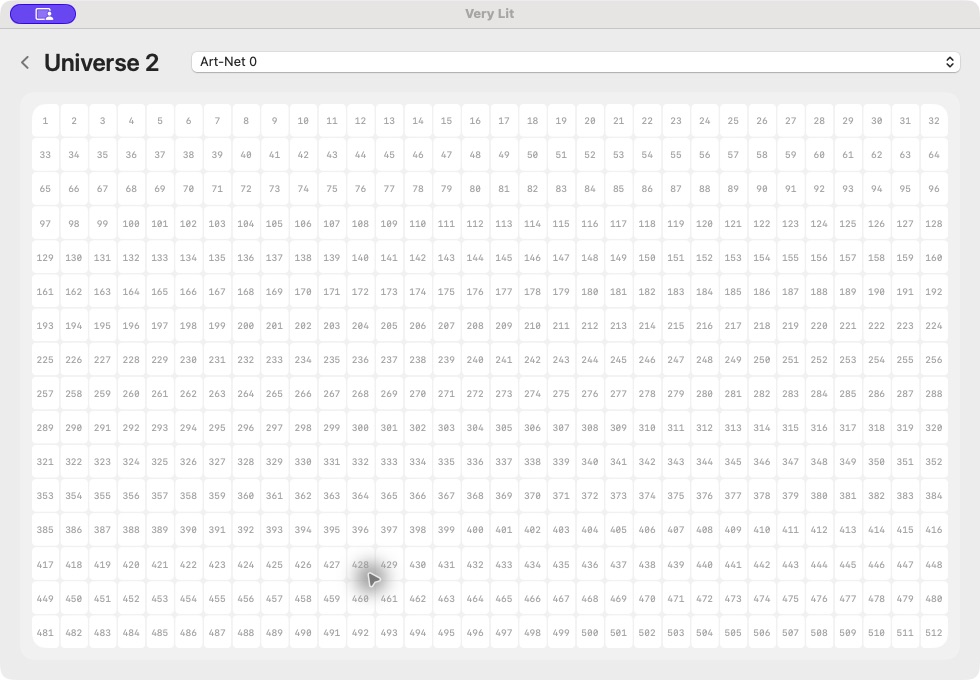
In the editor’s Patch view, note the fixture’s Universe, Address and Width. Its last channel is Address + Width − 1. For example, a width of 18 at Address 19 uses channels 19–36.
Open that universe tile in the bridge. Look at the numbered cells covering the fixture’s range while the show runs. Brighter cells indicate higher output values. Static channels may hold steady; not every cell should change with every beat.
STEP 2
If every light is dark, start with the selected show, Blackout, manual takeover and the output route. Follow the ENTTEC or Art-Net connection guide for your hardware.
If only one light is wrong, compare its model, mode, address and incoming cable first. Test that light as the first device on a known working output, using the manual first-light guide. If it works alone, add the remaining chain one fixture and cable at a time.
STEP 3
Once a manual test controls the light, turn Manual Control Live off. Return to the dashboard, choose an active lighting Mode and select the audio input carrying your music.
Play a steady track and inspect the audio display. An unrelated laptop microphone can hear room noise while the mixer feed is missing. Confirm the source reaches the device you selected; a reading alone does not identify the music source.
Search the full model and a shorter distinctive name. Check the manufacturer label and suffix: an ILS, IP or USB variant can have a different channel map. Profiles come from Very Lit’s built-in searchable catalog. If there is no exact model, gather the manufacturer’s manual and the desired mode’s channel table before requesting a definition.
Include the model and hardware mode, patch Universe/Address/Width, output device, bridge Destination and Connections status. Describe whether the audio display reacts, the relevant channel cells show values, and the manual first-light test works. Screenshots of Patch, Connections and the universe panel help locate the problem; exclude account credentials and linking codes.
Have a question about your lights or your next event? Send us a message.