SHOW EDITOR GUIDE
Design your lighting show in the browser.
Start with the room, add the lights you own, and make the patch match your hardware. The editor is where you build and preview the show; the macOS bridge sends it to real fixtures.
See Demo Jump to setup steps ↓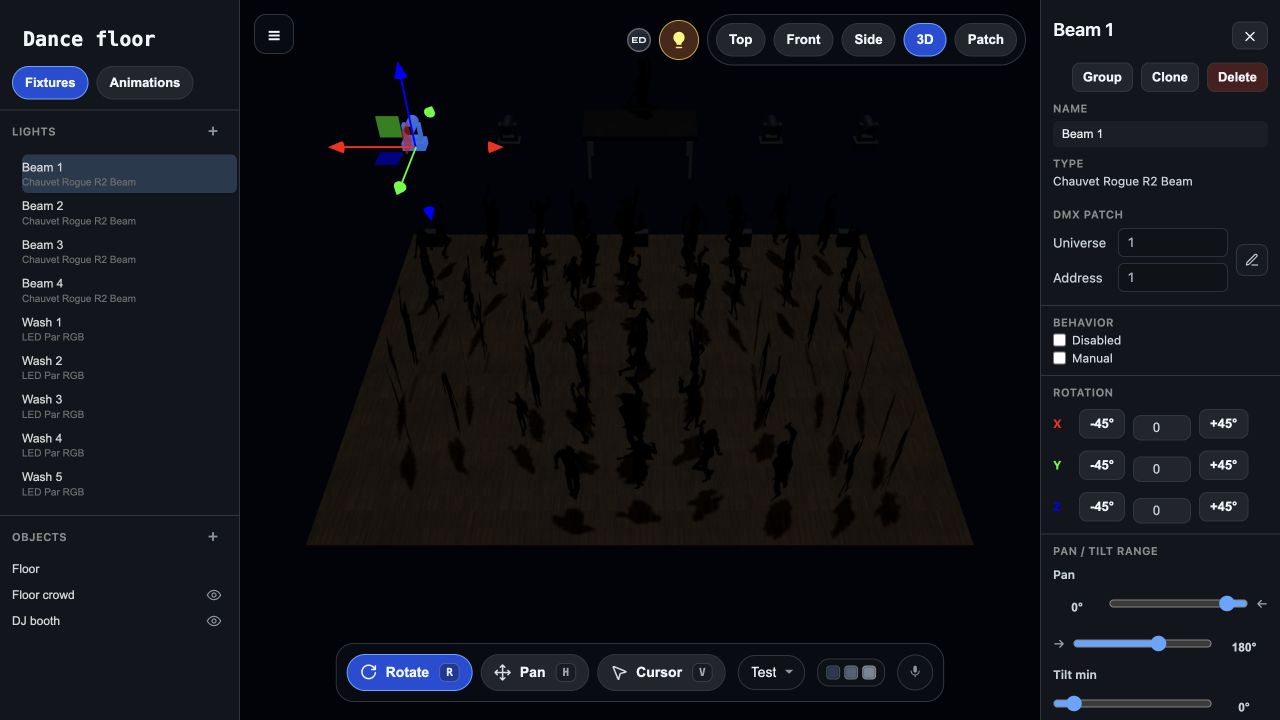
Before you start
- A Very Lit account and a browser.
- Your fixture model names and the DMX mode selected on each light.
- The dimensions of your space and the approximate position of each fixture.
STEP 1
Create or open a show
Sign in at verylit.club. From Shows, open an existing layout or create a new show. Give it a name you will recognize at the venue. Each show keeps its own fixtures, patch, and room layout.
STEP 2
Set up the space
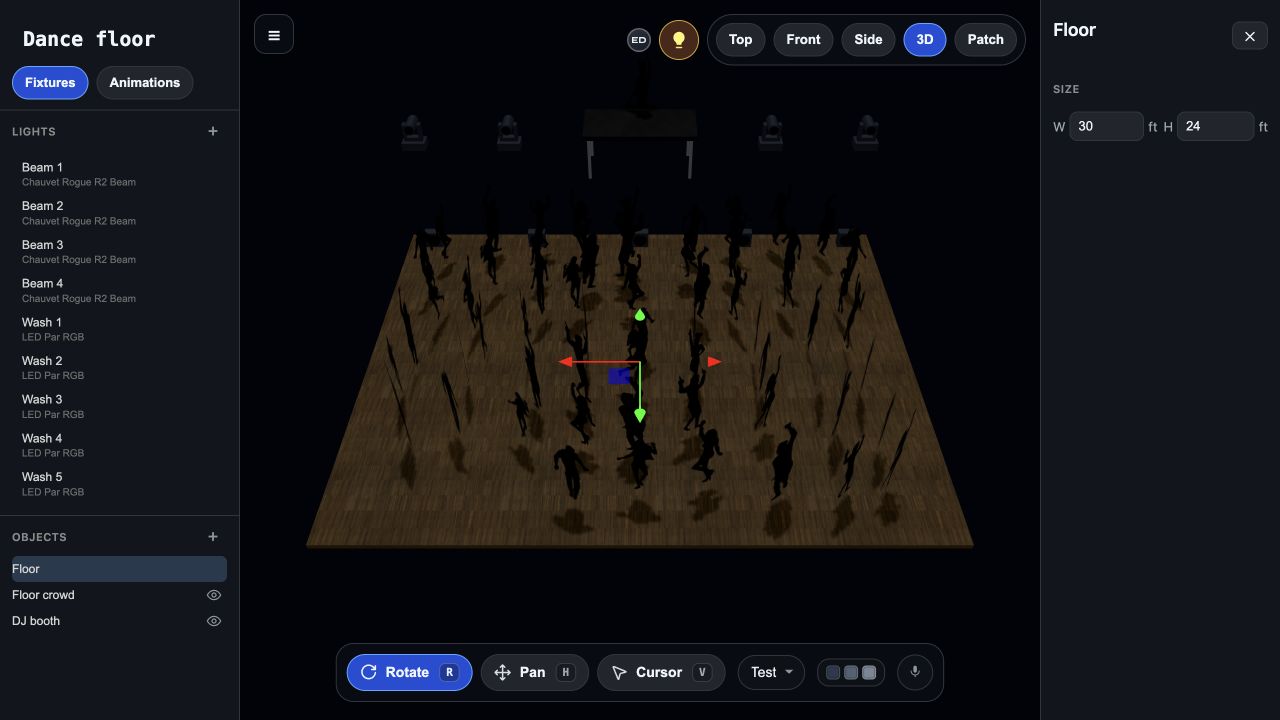
Select the floor and set its width and depth to match the room. The editor displays floor dimensions in feet. Position the floor and staging where they belong, then add the DJ booth or other scene objects you need.
Use the top view to lay out the room and the 3D view to check height and orientation. Keep the model close to the real space so aiming and previews are useful.
STEP 3
Add your lights
Choose Add Light and search by fixture model or manufacturer. Select the fixture, choose its Mode, then set the quantity, universe and Address. The editor uses the profile to understand the light’s channel layout.
Match the selected profile and channel mode to the settings on the physical fixture. A similar-looking fixture with a different channel mode can respond incorrectly.
STEP 4
Match the DMX patch
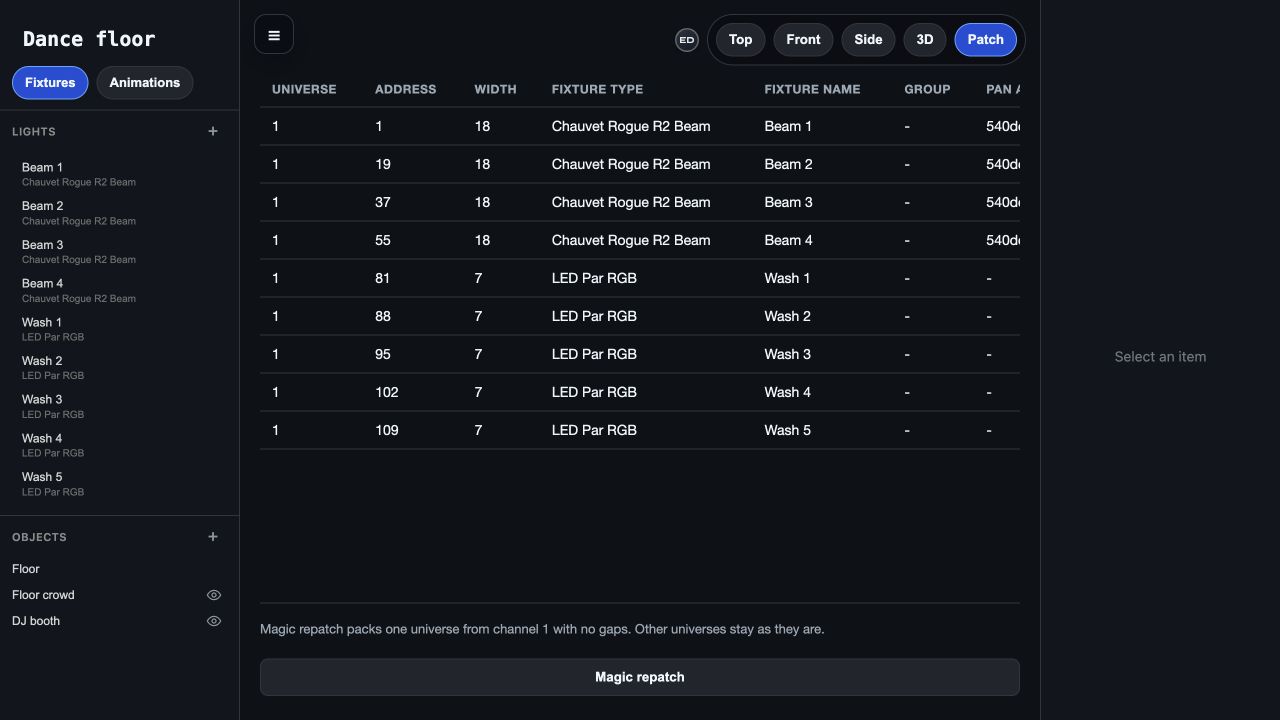
Every fixture needs a virtual universe and a start address. Match the address to the number set on the fixture. Keep each fixture’s full channel footprint within addresses 1–512, with no unintended overlap.
Use the patch view to review the whole rig, or select a fixture and use Edit patch. Virtual universes describe your show; the bridge maps them to your USB interface or Art-Net outputs.
STEP 5
Place and aim the fixtures
Select a light, move it into position, and set its height and housing rotation. Use the selection panel for precise values. Arrange fixtures into groups when they should work together.
Housing rotation describes how the fixture is mounted. Moving-head pan and tilt describe its live motion. Check both the mounting orientation and the available movement range when the preview does not match the room.
STEP 6
Preview the show
Use the 3D view and its simulation controls to preview lighting in the browser without a DMX interface. Choose a lighting mode and color scheme, and inspect the effect on the 3D rig. If you choose to enable microphone input, allow browser microphone access and supply a clear audio signal.
The browser simulation is a preview. It does not send DMX to your hardware. Check one physical fixture with the manual first-light test before running the full rig.
STEP 7
Connect the bridge when you are ready
Open the macOS bridge, link it to your account, and select the show you built. Choose the audio input and map its virtual universes to the physical outputs. Test one fixture with Manual Control first, then release Live and check its music response before extending the rig.
WHEN SOMETHING DOESN’T MATCH
Check the simple things first.
A fixture does not respond as expected
Check the exact model, fixture channel mode, universe, and start address. Confirm that another fixture is not occupying the same channels.
The room layout or aim looks wrong
Check fixture position, height, and housing rotation. For moving heads, review the pan/tilt range and how the real fixture is mounted.
The preview is running but real lights are dark
Sim is browser-only. Open the bridge and check its selected show, output connections, universe mapping, and blackout state.
Ready to connect your lights?
Next: connect the macOS bridge →Explore supported fixtures · Art-Net setup · Enttec Pro setup
Test one fixture without audio · Diagnose dark or incorrect fixtures
Choose colors for your event →
More questions? Visit the FAQ.