DESIGN THE EXPERIENCE
Design the room around the music.
Start with the people and the space. Where will the DJ be? What should draw the audience’s eye? Where should light surround the dancers and build energy? Give each part of the room a purpose, then turn that plan into fixtures and animation groups in Very Lit.
See Demo →Start with three decisions
- Is the DJ on a separate stage, behind a booth at the edge of the floor, or part of the dance floor itself?
- What needs a clear visual highlight: the DJ, a performer, a backdrop, a sign or another feature?
- Where should color and moving light create an immersive space for dancing?
One room, different lighting jobs
Keep the DJ or chosen feature readable.
Send visual energy from the booth toward the floor.
Build color and movement around the dancers.
STEP 1
Decide whether the room has a stage or a shared dance floor
With a separate stage or raised DJ booth, the audience already has a front to face. Give that area a recognizable look: pick out the DJ or performer, frame the booth and use the backdrop to make the stage feel intentional. Leave enough light for the DJ to see the controls.
If the DJ is at floor level or surrounded by dancers, think about the whole room rather than one front-facing picture. Use the booth as a visual anchor, while spreading color and movement around the floor so people feel inside the show.
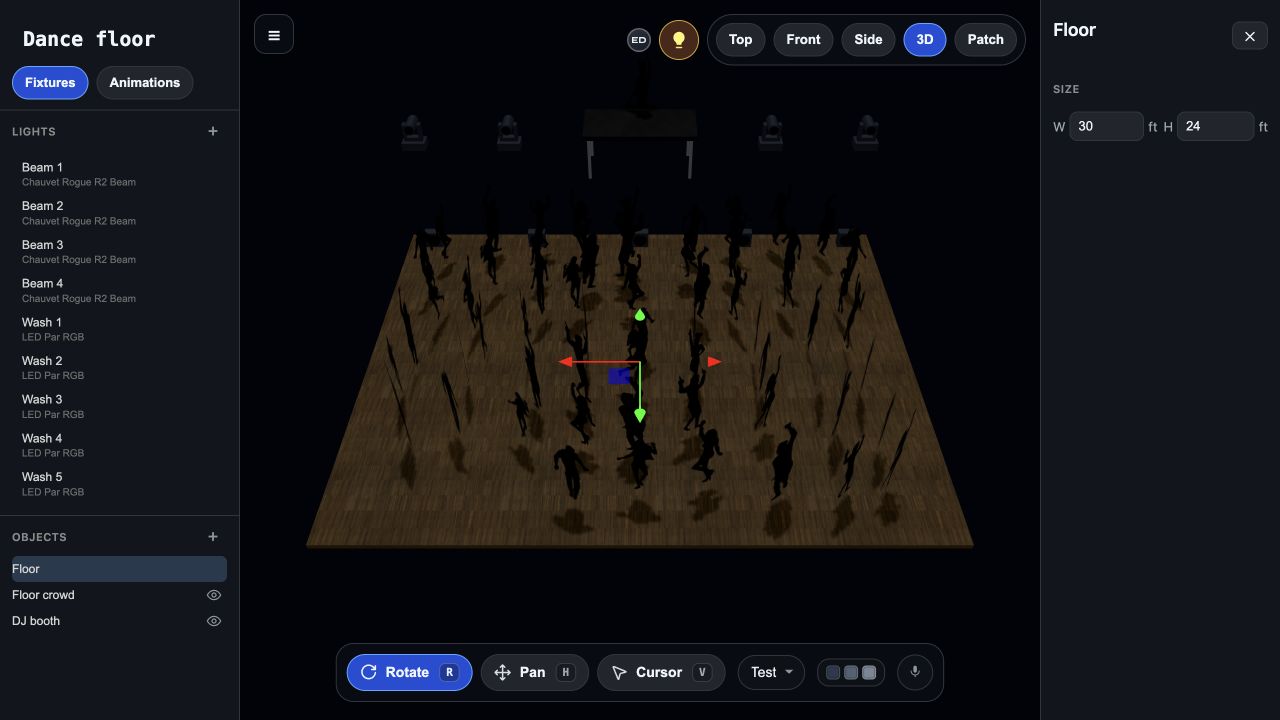
In Very Lit, place the floor, DJ booth and fixtures in their actual relative positions. Look at the 3D plan from the audience’s side and from the booth: do the lights support the way people will use the space?
STEP 2
Separate what you want to highlight from what you want to animate
A spotlight answers “look here.” Use a deliberate, relatively steady look for a performer, the DJ, a sign or a feature you want people to recognize. If that light constantly sweeps away, the focal point disappears with it.
Energy lighting has a different job: color changes, moving beams and rhythmic accents help the room feel alive. Give these effects their own fixtures or groups so the dance floor can change with the music while important highlights remain readable.
Think of three layers: a focal point, an enveloping base of color, and a layer of movement. You do not need a large rig to make those roles clear. Start with the lights you own and decide which job each can do.
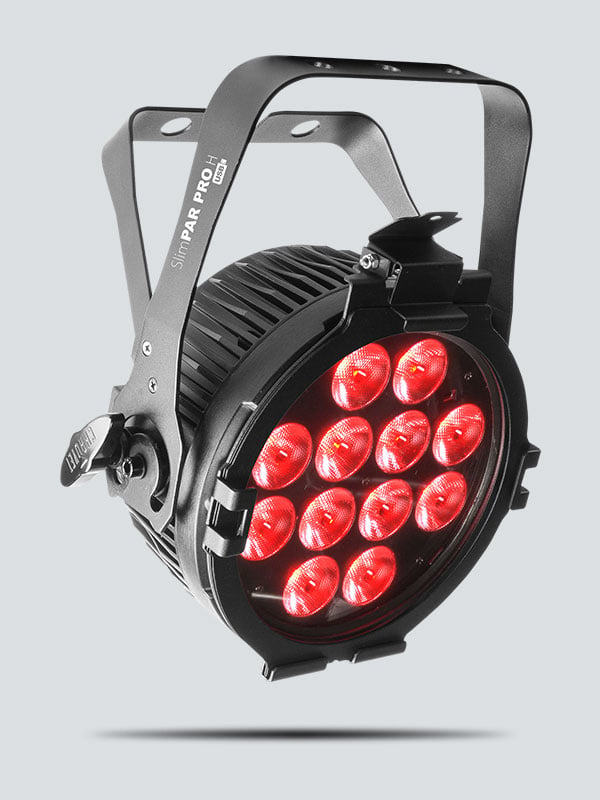
Photo: CHAUVET DJ ↗
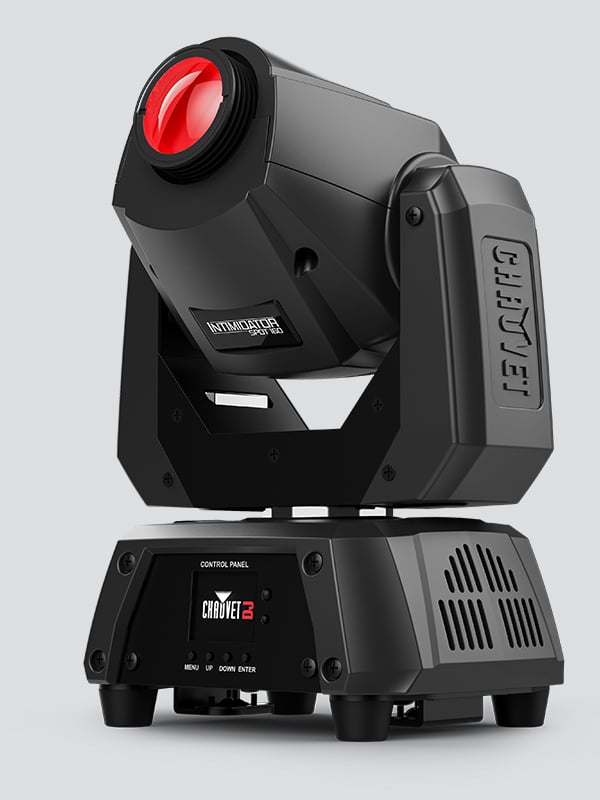
Photo: CHAUVET DJ ↗
STEP 3
Surround the dance floor, then add a show from the DJ
An immersive floor needs more than everything pointing at it from one end. Look for useful positions around its edges: side light, wall color and overhead coverage can give dancers a sense of being surrounded. Compare those possibilities in the 3D editor before choosing placements.
For a showy front, place a pair or line of effect fixtures around the DJ area and direct their visual movement out toward the audience space. Symmetry can frame the booth; coordinated movement can make the DJ area feel like the source of the show. Check sightlines and glare from both the booth and audience positions.
Keep the surrounding floor layer distinct from the DJ accents. Then you can build excitement at the front without losing the color and atmosphere around the dancers.
STEP 4
Turn those jobs into named groups in Very Lit
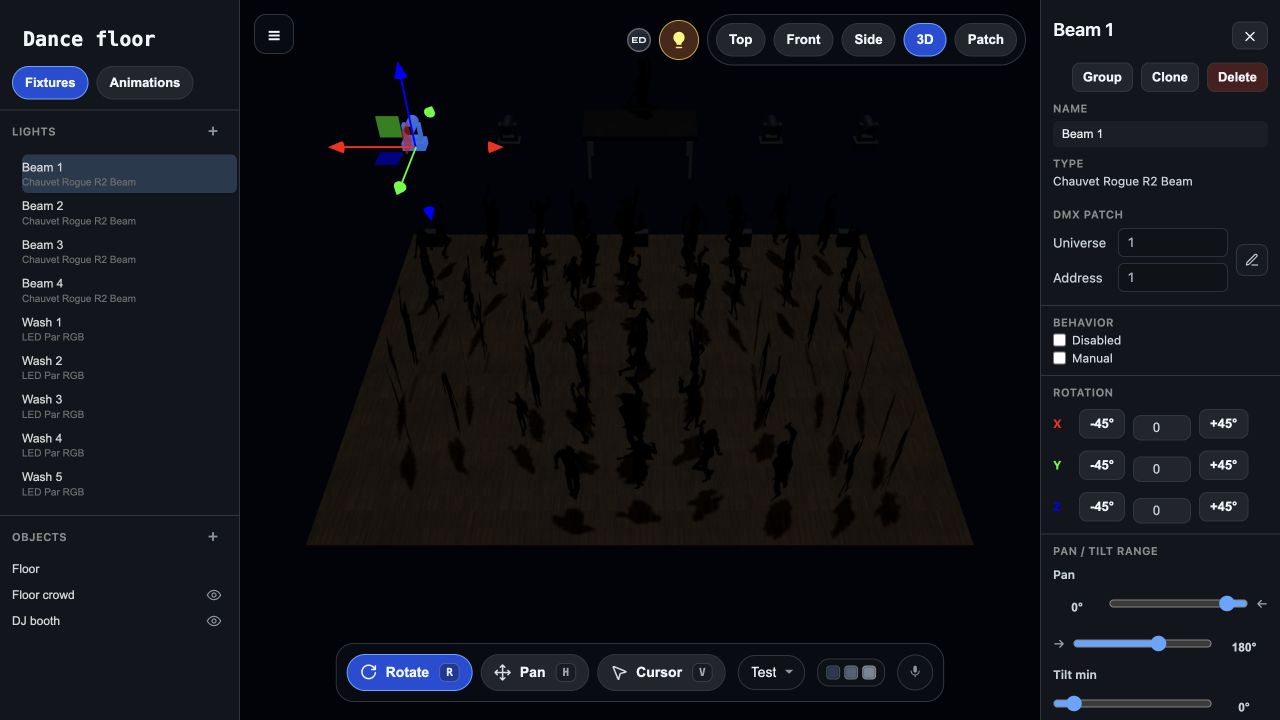
Group lights by the job they should perform together, rather than only by brand or cable order. For example: “DJ accents” for the booth’s effect lights, “Floor movement” for the dancers’ moving layer, “Room color” for surrounding washes, and “Feature spots” for deliberate highlights. Use only the groups your rig actually needs.
In the Fixtures view, select the lights that belong together, choose Group and give the group a clear name. In Animations, that name appears under Group in Destinations. In an editable lighting mode, assign an appropriate animation to the group so those fixtures receive that assignment together.
Give the floor and DJ groups complementary animation roles, and keep a steadier treatment for the highlights. Shared grouping coordinates an animation assignment; the resulting movement and color still depend on the animation and each fixture’s capabilities.
A group is not a shared DMX address. Keep separate, non-overlapping fixture ranges for independent control, even when lights belong to the same animation group.
From a room idea to a coordinated lighting layer
STEP 5
Check the design, then make the patch and cable plan
Preview the groups together in the 3D simulation. Can you still find the DJ? Does the floor feel surrounded? Are the accents adding energy, or is every light competing for attention? Adjust one group at a time so you can see its contribution.
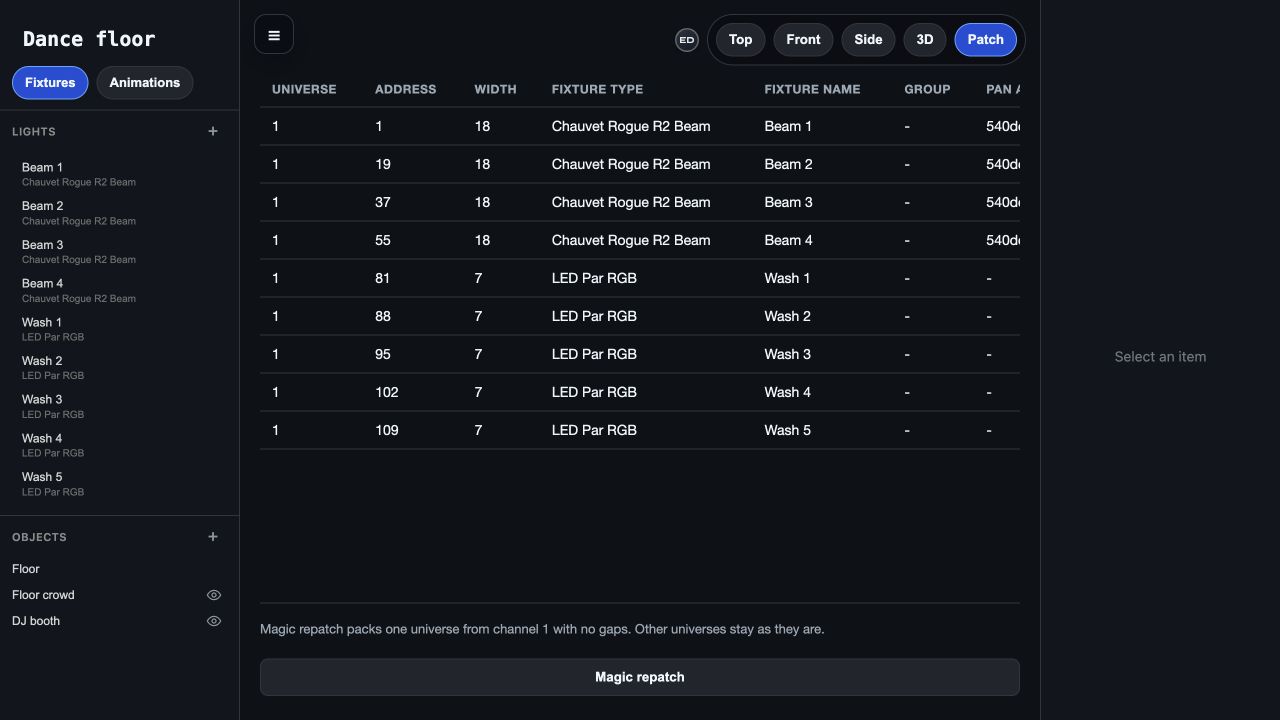
Once the design makes sense, record each fixture’s model, mode, universe, start address and last channel. Reserve its full channel footprint. For example, two 6-channel washes followed by two 18-channel movers can occupy slots 1–48 in a flexible patcher; grouping does not change those footprints.
Choose the output path that fits your equipment: ENTTEC DMX USB Pro or an Art-Net node from the Mac bridge. Plan the DMX cable run, use an active splitter for separate branches and terminate each run. Match the physical modes and addresses, test one light, then add the rest and try the music-reactive show.
The design groups and DMX patch are separate choices
Troubleshooting
Should I put all the lights in one group?
Use one group when the fixtures should share a lighting job. Separate the booth accents, surrounding color and movement when you want to assign them different treatments. A small rig may need only two groups; clear roles matter more than the number of groups.
Do lights in a group need the same DMX address?
No. A Very Lit group is an animation destination, not an address block. Give independently controlled fixtures their own ranges. Matching lights with the same address and mode receive identical DMX values, which limits independent control.
What if the room has no separate stage?
Use the DJ booth as an anchor without treating it as the only place worth lighting. Build an enveloping layer around the dance floor, then add booth accents and any feature highlights that suit the room.
Try the room before you set it up.
Preview the Nightclub booth, fixtures, and music-reactive lighting together in 3D.
See Demo →See how the editor works → · Compare all lighting workflows →