MACOS BRIDGE GUIDE
Connect your music, your show, and your lights.
The browser is your design space. The macOS bridge is the connection to the room: it analyzes live audio and sends lighting output through your local DMX hardware.
See Demo Jump to setup steps ↓Install the Mac app
Requires macOS 14 or later.
- InstallUnzip the download and drag Very Lit into Applications.
- Sign inOpen Very Lit and choose Link to Cloud.
- Allow accessApprove Microphone and Local Network when asked.
Before you start
- A Mac running macOS 14 or later, with the Very Lit bridge app.
- A Very Lit account and an internet connection for linking and loading your show.
- DMX fixtures plus an ENTTEC DMX USB Pro interface or an Art-Net node.
- A microphone or an audio interface carrying the music you want the lights to follow.
STEP 1
Build your show first
In the browser, create a show and add the fixtures with their exact profiles, virtual universes, and addresses. Make the fixture addresses and channel modes match the settings on the lights.
Follow the show editor guide →STEP 2
Link the Mac to your account
Open Very Lit on the Mac and choose Link to Cloud. A browser window opens for account authorization. Sign in to the account that owns your show and complete the link, then return to the bridge.
Choose your show from the Show menu. Use the open-in-browser button when you want to return to its show layout. Keep the Mac connected while the app loads the show.
STEP 3
Choose an audio input
Open the Audio input tile and select the microphone or audio interface that is carrying your music. Allow microphone access in macOS when prompted. A direct feed through an audio interface is useful when room noise makes the microphone signal unclear.
Check the audio display while music is playing. If it stays idle, check the selected input, the source level, and macOS Privacy & Security → Microphone. A tempo reading may need time to lock onto a steady beat.
STEP 4
Connect your DMX hardware
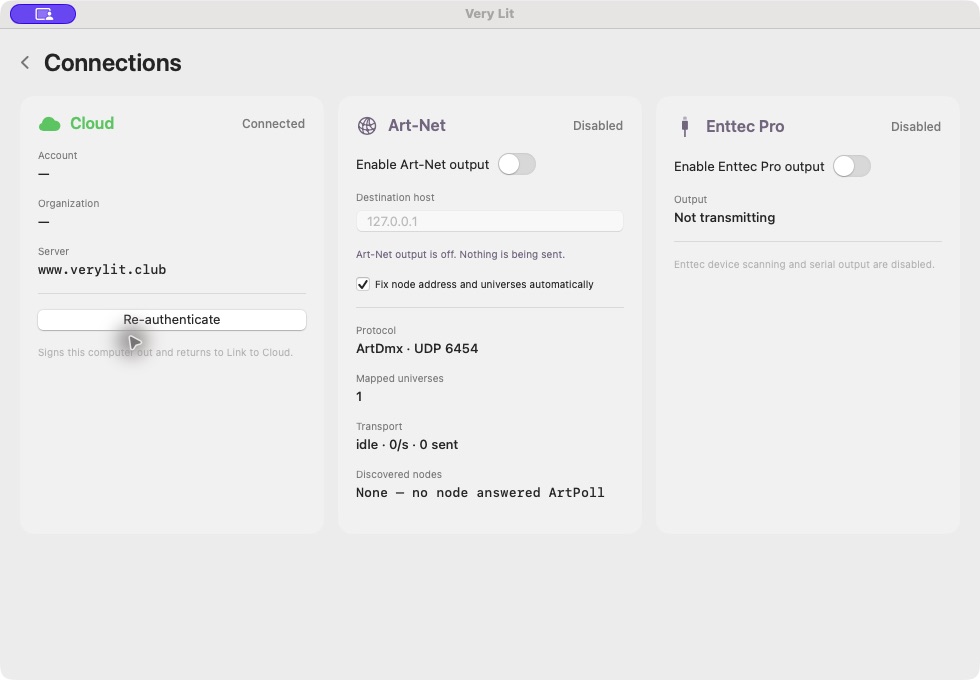
For Enttec Pro USB, connect the interface to the Mac and run DMX from the interface to your fixtures. Open Connections and enable Enttec Pro output.
For Art-Net, connect the Mac and the node to a reachable local network. Open Connections, enable Art-Net output, and check the destination host and discovered node details. Allow macOS Local Network access when prompted.
STEP 5
Map the virtual universes
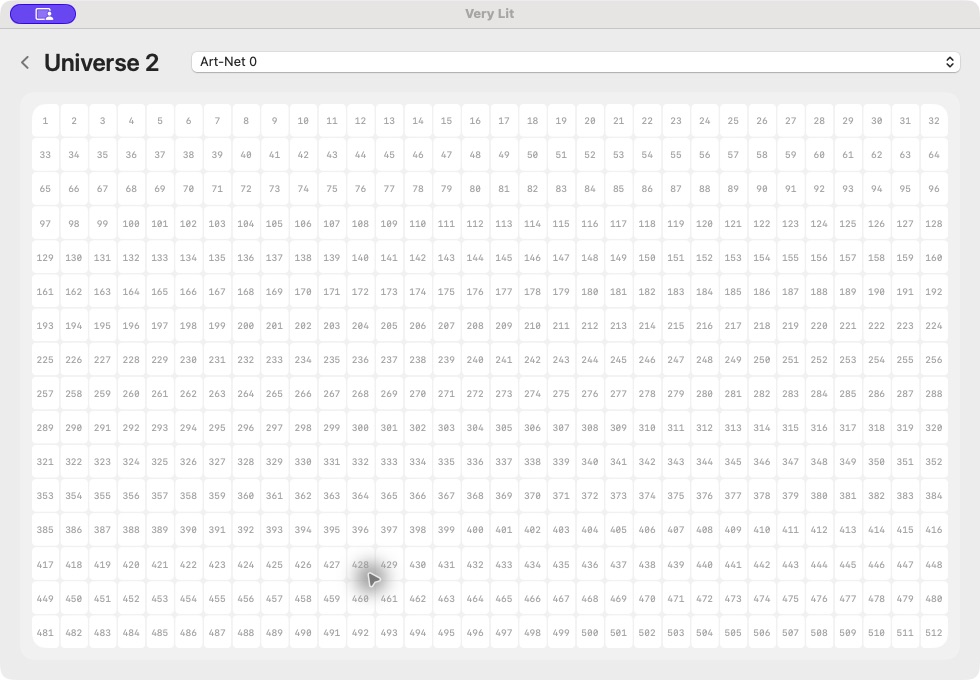
Open a universe tile and choose its Destination: Enttec, an Art-Net universe, or Unmapped. The virtual universe is the number in your show’s patch; the destination is the physical output carrying those channels.
Art-Net output numbering can start at 0. Match the destination to the number configured on your node rather than assuming virtual universe 1 must go to Art-Net 1. For one DMX USB Pro, route exactly one virtual universe to Enttec. Leave unused universes Unmapped.
STEP 6
Check the rig, then choose the look
Play music and check a small set of fixtures first. Confirm that the bridge is linked, the correct show is selected, the audio signal is present, and the output status is healthy.
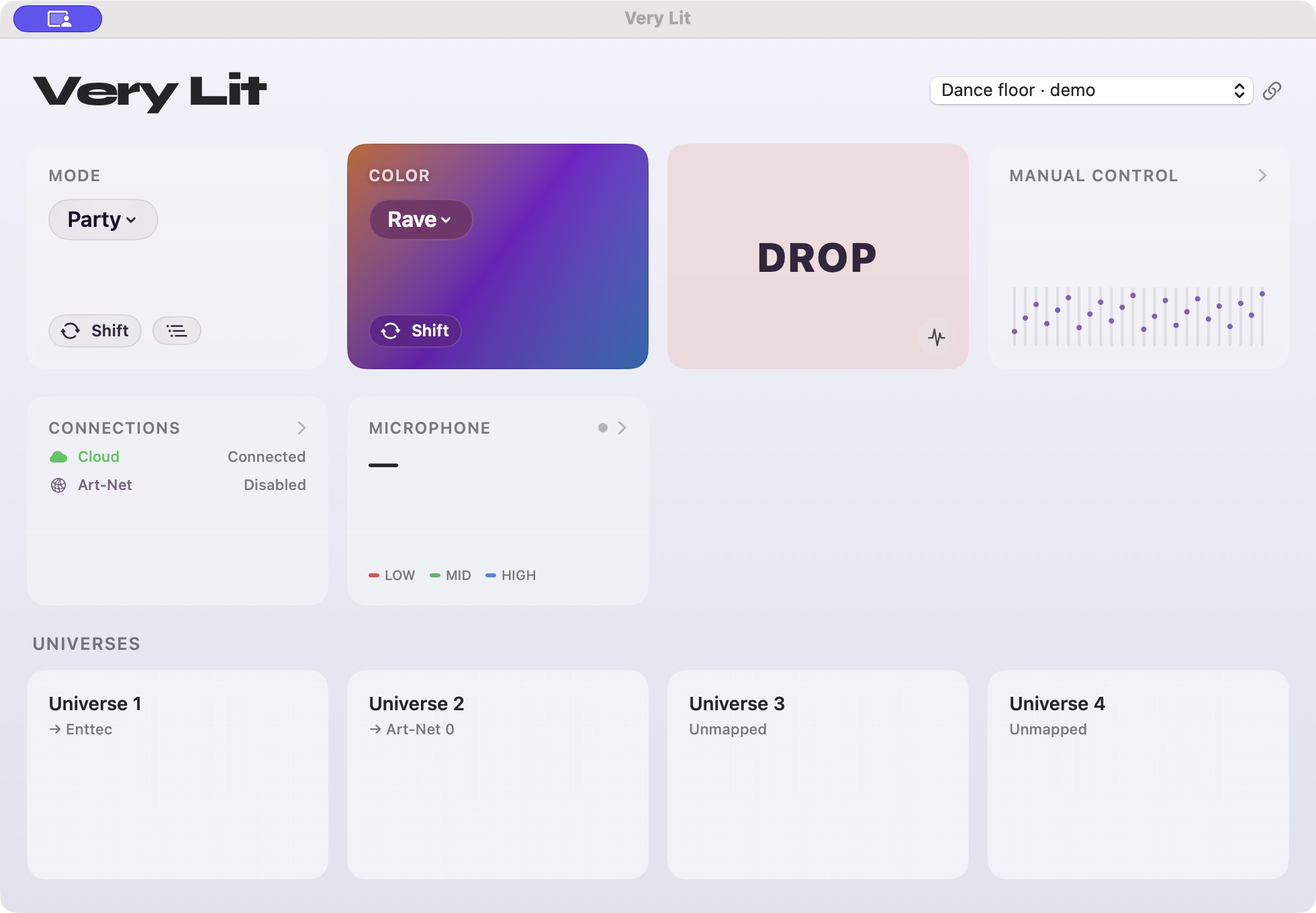
Choose a lighting Mode and Color scheme from the dashboard. Use Shift to generate another interpretation or color variation. Use Blackout when you need to bring lighting output down; check its state when diagnosing a dark rig.
WHEN SOMETHING DOESN’T MATCH
Check the simple things first.
The app keeps waiting for approval
Return to the browser opened by Link to Cloud and finish authorization. Make sure you signed in to the intended account and that both the browser and bridge can reach the site.
Audio stays idle
Select the correct input, confirm music reaches that device, and check microphone permission in macOS. Start with a steady track when checking tempo.
The bridge is linked but lights stay dark
Check Blackout, the selected show, output enablement, universe destinations, cable connections, and the fixture addresses and channel modes.
Art-Net does not reach the node
Check the destination host, node universe numbering, local network connection, and macOS Local Network permission. Review the Connections panel for discovery and output status.
A good show starts with a good patch.
Read the show editor guide →Explore supported fixtures · Art-Net setup · Enttec Pro setup
Test one fixture without audio · Diagnose dark or incorrect fixtures
Choose colors for your event →
Find your Pioneer DJ USB audio setup →
More questions? Visit the FAQ.