FIRST LIGHT CHECK
Get one light working before the whole rig.
Prove the lighting connection with a steady manual value first. Once that works, turn manual control off and check the music response.
Diagnose a dark or incorrect fixture →Before you start
- One fixture on a test DMX chain, its exact model, manual and selected channel mode.
- Your show loaded in the Mac bridge, with the fixture patched and its output enabled and routed.
- For the worked example: a SlimPAR Pro H USB in 6-channel mode at Address 1. Other models have different channel layouts.
Test the output before testing audio
STEP 1
Make the hardware and patch agree
Connect just the test fixture to your USB Pro or Art-Net node. Put it into DMX control. In Add Light, select its exact model and Mode, then set the Universe and Address to match the hardware.
For the example, select SlimPAR Pro H USB → 6-channel, set Address to 1, and put the light itself into 6-channel mode at address 1. Enable the chosen output in Connections and set that universe’s Destination to Enttec or the node’s Art-Net number.
STEP 2
Prepare Manual Control
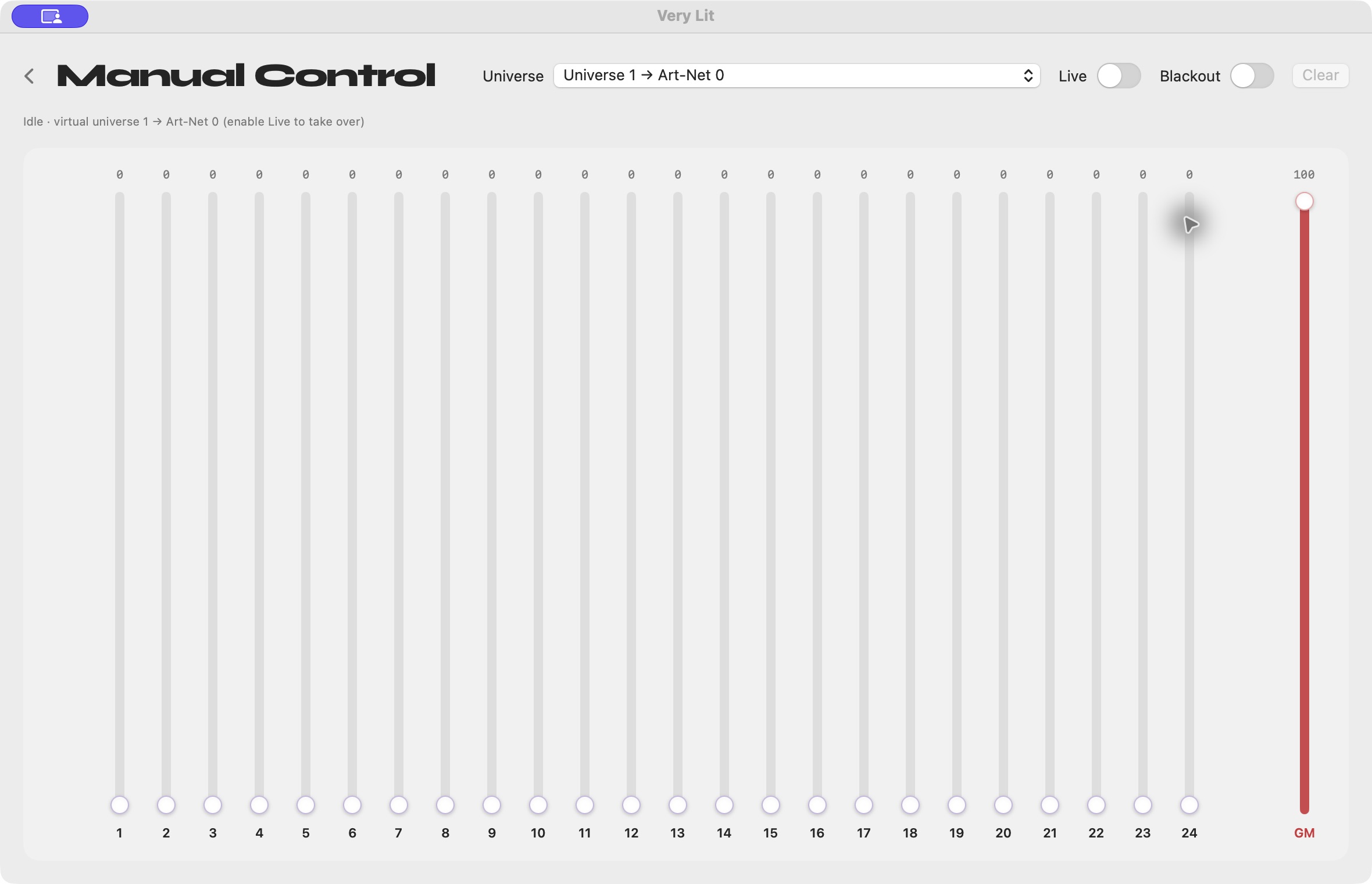
Open the desk tile on the bridge dashboard. In Manual Control, select the virtual Universe used by the test light. Keep Live off while preparing the faders. Press Clear if any faders are raised, set GM to 100%, and leave this desk’s Blackout off.
The desk controls channels 1–24, not the entire 512-channel universe. Live replaces all 24 of those channels, including faders left at zero. Use it on a single-light test chain rather than taking over the first 24 channels of an event rig.
STEP 3
Send a known value and observe the light
For the 6-channel SlimPAR example, enable Live and raise fader 1 (Red) gradually. With the other faders at zero, the light should produce red. Lower fader 1 again and it should go dark. This test does not depend on an audio signal.
In this mode, faders 1–6 are Red, Green, Blue, Amber, White and UV. The 7-channel mode adds a dimmer before the color channels, so its red channel is different. For another fixture, read the manual to identify the channels and any dimmer or shutter values needed; do not guess from this example.
STEP 4
Return to music control
Lower the test faders, turn Live off, and return to the dashboard. Turning Live off releases the manual override; closing the desk alone does not release it.
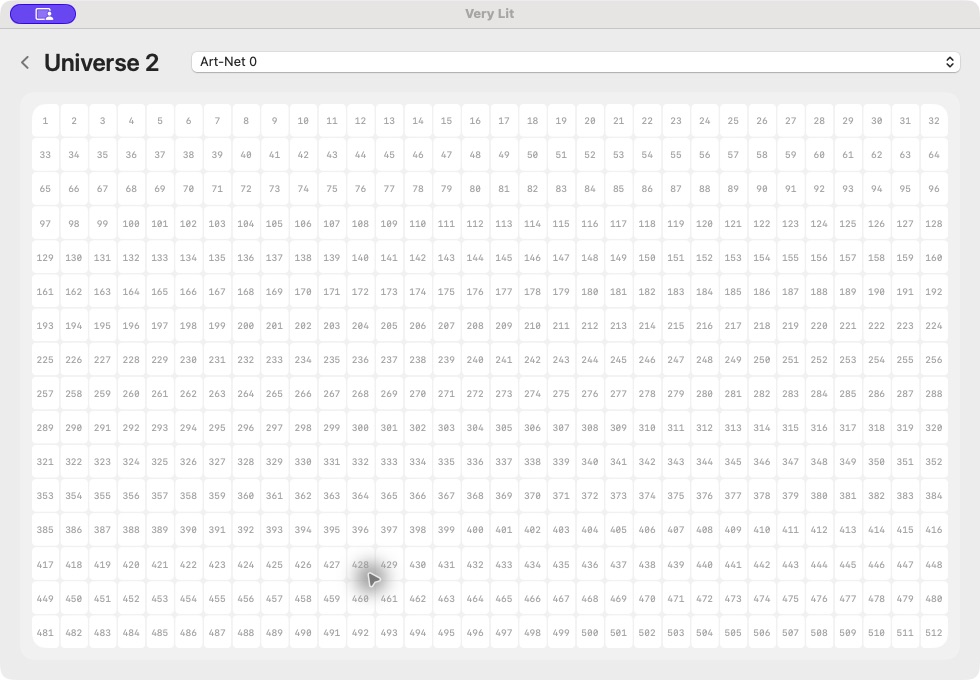
Choose an active lighting Mode, select the audio input carrying music, and confirm the audio display reacts. Open the fixture’s universe tile and observe its channel grid as the show runs.
Troubleshooting
The fader moves, but the light does not
Confirm Live is on, GM is above zero, desk Blackout is off, and the selected Universe has an enabled physical destination. Verify the fixture’s mode, address and cable. A fixture outside channels 1–24 is outside this desk’s range.
The show stops controlling my first few lights
Return to Manual Control and turn Live off. It keeps overriding channels 1–24 of its selected universe even after you return to the dashboard.
Desk Blackout does not black out the whole rig
Desk Blackout zeros its 24 controlled channels while Live is on. It does not zero channels 25–512 or other universes. Use the dashboard’s Blackout lighting Mode for the engine, and release manual Live if you need the engine to regain those channels.