USB DMX SETUP
Connect an ENTTEC DMX USB Pro.
Use the Pro interface to send one show universe over USB. This guide covers the DMX USB Pro output protocol; Open DMX USB is a different device.
Test one light without audio →Before you start
- A Mac running macOS 14 or later and the Very Lit bridge linked to your show.
- An ENTTEC DMX USB Pro, a USB data cable, and DMX cable or the appropriate connector adapter for your fixtures.
- Fixture model, channel mode and start address recorded in the show editor.
One USB interface, one output universe
STEP 1
Connect the interface and the first light
Connect the Pro to the Mac using a USB data cable. Connect the Pro’s DMX OUT to the first fixture’s DMX IN. For additional fixtures, cable each light’s DMX OUT to the next light’s DMX IN.
Close any other lighting application using the interface. ENTTEC USB DMX devices can be used by one application at a time. Set the first light to DMX mode and choose its mode and address.
STEP 2
Enable Enttec Pro output
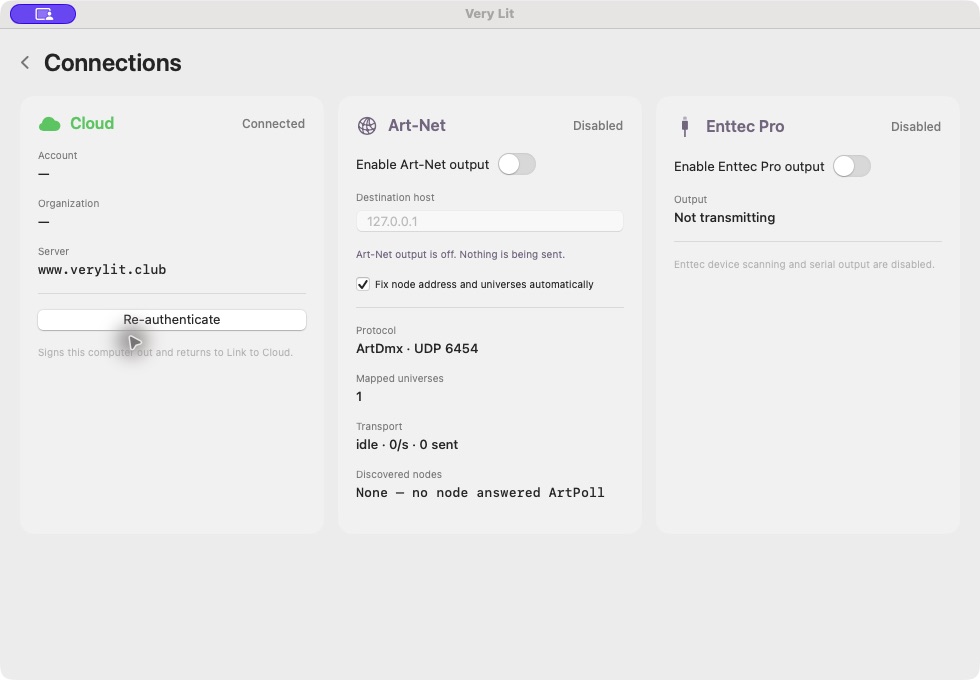
In the bridge, open Connections and turn on Enable Enttec Pro output. Device detection is automatic; there is no serial-port picker.
The Enttec Pro panel shows Port, Detection and Serial candidates. A connected port is evidence that the bridge has opened the USB device. The output switch alone does not prove that a light is receiving DMX.
STEP 3
Route exactly one universe to Enttec
Open the universe tile containing your fixtures and set Destination to Enttec. Set unused universe destinations to Unmapped. Keep all fixtures on this physical output in the same virtual universe.
For example, two SlimPAR Pro H USB fixtures in 12-channel mode can share Universe 1 at addresses 1 and 13. Set those addresses on the lights and patch them identically in the editor. Route Universe 1 to Enttec.
Two 12-channel lights on one DMX line
STEP 4
Check a fixture before extending the chain
Select your show, turn Blackout off, and play music into the bridge’s selected audio input. Confirm the first light responds before adding the rest of the chain.
If several fixtures should react independently, give them separate address ranges. Fixtures intentionally given the same address and mode receive the same channel values.
Troubleshooting
Enttec Pro says Searching
Confirm output is enabled and a universe containing fixtures is routed to Enttec. Check the USB data cable, reconnect the interface and close other apps using it. If Serial candidates says no compatible ports were found, check whether macOS detects the USB device and consult ENTTEC’s driver guidance.
Connected, but no light responds
Check the selected show, Blackout, the universe Destination and the fixture’s mode and address. Confirm the cable uses DMX OUT on the Pro and DMX IN on the light. Start with one light and a known working DMX cable.
Output flickers after routing another universe
Use only one Enttec destination for this interface. Multiple virtual universes mapped to Enttec send competing buffers to the same physical output. Put the fixtures into one universe or use an additional Art-Net output.